
Who is this Guide For?
- All Users
Prerequisites
- You are signed in to the Crexendo messaging application.
- You have access to the Canned Response library.
- You have created at least one Canned Response to use as your Away Message.
Overview
Away Messages act as auto-responders to inbound messages. When an Away Message is active and you receive a message, the contact who sent the message will automatically receive a reply containing your Away Message text.
Away Message Preview
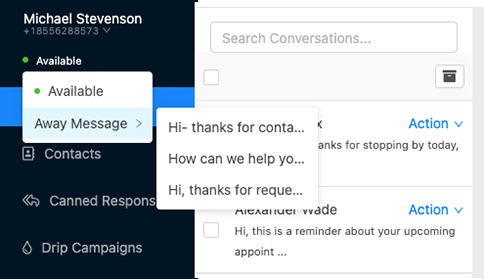
The Away Message status indicator displays your current availability (for example, Available or an active Away Message selection). You can hover over it to view and select available Away Message options.
Setting an Away Message
Away Messages use your Canned Response library as the source of messages to choose from. To set an Away Message, you must have at least one Canned Response created first.
Step 1: Create a Canned Response
- Open your Canned Response library (location may vary by app version).
- Select Add or Create New.
- Enter the message you want contacts to receive while you are away (example: “Thanks for your message! I’m currently away and will respond as soon as I can.”).
- Save the Canned Response.
Tip: Create multiple Canned Responses (e.g., “In a meeting”, “Out of office”, “After-hours”) so you can switch quickly without rewriting your Away Message.
Step 2: Select Your Away Message
- Locate your status indicator that shows “Available”.
- Hover over the Available status indicator.
- From the dropdown list, select the Canned Response you want to use as your Away Message.

Step 3: Confirm Your Away Message Is Active
- Verify the status indicator now reflects your selected Away Message (instead of “Available”).
- Optionally, have a colleague send you a test message to confirm the auto-reply is sent.
Clearing an Away Message
When you are ready to stop auto-responding, set your status back to Available.
- Hover over the Away Message status indicator.
- Select “Available” at the top of the dropdown.
Note: If you do not clear your Away Message, the auto-responder will continue replying to inbound messages until you switch back to Available.
Auto-Responder Loops
If you have an active Away Message and a remote auto-responder sends you a message, the system takes steps to prevent both auto-responders from replying to each other indefinitely.
Important: Auto-responder loops can quickly increase costs with your VoIP provider.
How Loop Prevention Works
- When an Away Message is sent to a contact, the system associates the inbound message body that triggered the auto-response with that contact.
- If the same contact sends the exact same message body again, the auto-response will not be sent a second time.
Note: If a remote auto-responder sends messages with unique content each time, it is still possible for auto-responder loops to occur.
Troubleshooting
I don’t see any options when I hover over “Available”.
- Confirm you have created at least one Canned Response.
- Refresh the app and hover again.
- If options still do not appear, confirm your account has access to the Canned Response feature.
My Away Message isn’t sending an auto-reply.
- Verify an Away Message is currently selected (not “Available”).
- Ask the sender to try with a different message body (if they sent the exact same message previously, the system may suppress repeats).
- Confirm the inbound message was received in the app.
- If the issue persists, contact Crexendo Support.
I’m worried about auto-responder loops.
- Use concise Away Messages and avoid encouraging repeated automated replies.
- If you suspect a loop, switch your status back to Available to stop auto-responding.
- Contact Crexendo Support if you believe a number is stuck in an automated exchange.
FAQ
Do Away Messages reply to every inbound message?
Away Messages auto-reply to inbound messages while active, but repeat messages with the same message body from the same contact may not trigger an additional auto-response (loop prevention).
Can I use multiple Away Messages?
Yes. Create multiple Canned Responses and select the one you want to use as your Away Message at any time.
Need More Help?
If you need additional assistance, please contact Crexendo Support at 855-211-2255 or email us at support@crexendo.com — our team is happy to help!