
Who is this Guide For?
- All Users with access to VIP Group Messaging
Prerequisites
- You are signed in to the Crexendo messaging application.
- Your user account has one or more numbers assigned (your own number and/or shared numbers).
Overview
The Number Switcher allows you to toggle between your primary phone number and any additional numbers that have been shared with your account.
Note: Some users and account types may be limited to a single number. If you only have one number, the Number Switcher may not appear.
Number Switcher Preview
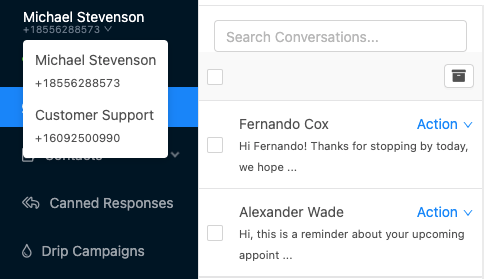
The Number Switcher is typically located at the top-left of the application. It shows your currently active number and opens a dropdown list when clicked.
Switching Numbers
Step 1: Open the Number Switcher
- Locate the Number Switcher in the top-left of the application.
- Click the currently displayed number to open the dropdown list.
Step 2: Select the Number You Want to Use
- From the dropdown, click the number you want to make active.
- The application will reload the current page content based on the number you selected.
Note: Switching to an account with a large number of active conversations or contacts may cause a short delay while the app downloads relevant conversation and contact data.
Step 3: Verify Your Active Number
- After the reload, confirm the Number Switcher displays the new active number.
- Send a test message (optional) to confirm you are messaging from the correct number.
How Sender Identity Works on Shared Numbers
When sending a message from a shared number, the app associates the message with the user who sent it. This helps teams identify who said what inside a conversation.
View the Sender Name
- Locate an outbound message in the conversation.
- Click the message status label (for example, “Sent” in the bottom-right of the message).
- Review the sender name shown.

Troubleshooting
I don’t see the Number Switcher.
- Your account may be limited to a single number.
- No shared numbers are assigned to your user yet.
- Try signing out and signing back in to refresh your session.
- If the issue persists, contact your administrator or Crexendo Support.
The app is slow after switching numbers.
- This can happen when switching to a number with many conversations or contacts.
- Allow time for the app to download and sync your conversations/contact data.
- If it remains slow, close and reopen the app (or refresh the browser) and try again.
I can’t tell who sent a message on the shared number.
- Click the outbound message status label (e.g., “Sent”) to display the sender name.
- If the sender name never appears, refresh the page and re-check.
FAQ
Does switching numbers change my login or profile?
No. Switching numbers changes which number is currently active for viewing and sending messages, but it does not change your login or user profile.
Will my conversations disappear when I switch numbers?
No. Conversations are scoped to the number you are viewing. Switching numbers reloads the page content to show the conversations and contacts for that selected number.
Need More Help?
If you need additional assistance, please contact Crexendo Support at 855-211-2255 or email us at support@crexendo.com — our team is happy to help!