
Who is this Guide For?
- All Users with access to Crexendo VIP Group Messaging Blasts
- Users who need to segment contacts using Contact Lists
What You’ll Accomplish
- Create and manage Contact Lists for sending Blasts
- Add or remove contacts from lists
- Use Auto-Subscribe Keywords to grow lists automatically
Overview
Contact Lists allow you to segment your contacts when sending Blasts. This helps you target the right audience (for example, staff announcements vs. promotional messages).
Note: Some users and account types may have this feature disabled by their administrator.
Create a List
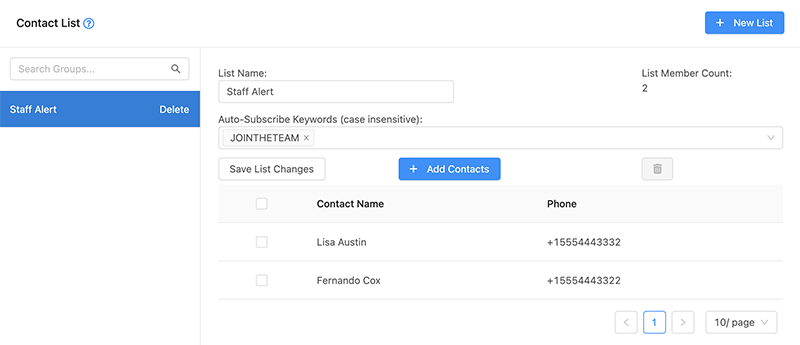
- Click New List in the top-right corner of the screen.
- Enter a name for the list, then click Add List.
- After making any changes, click Save List Changes.
Tip: List names should be easy to recognize (for example: Staff Alert or September Promo).
Edit a List
- Locate the list you want to edit on the left-hand side.
- Click the list to open the edit details view.
- Make your changes, then click Save List Changes.
Auto-Subscribe Keywords
A great way to build lists is to promote a subscription keyword to your contacts. When an Auto-Subscribe Keyword is received from a contact, that contact is automatically added to the contact list.
Tip: To generate an automatic reply when a contact subscribes via keyword, use Canned Responses with an Auto-Reply Keyword and set the keyword to the same value as your list’s subscription keyword.
Add Contacts to a List
You can manually add a contact to a list by following these steps:
- Open the list you want to edit.
- Click Add Contacts to open the contact selection drawer.
- Select the checkbox next to each contact you want to add.
- Click Add Contacts to confirm.
Remove Contacts from a List
- Choose the list you want to edit.
- Select the checkbox on the row for the contact(s) you want to remove.
- Click the trash can icon to delete the selected contact(s) from the list.
Delete a List
- Locate the list you want to delete.
- Click the Delete link on the right side of that list.
- Confirm deletion when prompted.
Warning: Deleting a list removes the list itself. If you may need it again, consider editing the list name instead of deleting.
Troubleshooting
I don’t see Contact Lists
- This feature may be disabled for your user role or account type.
- Contact your administrator to confirm access.
My changes didn’t apply
- After edits, click Save List Changes to apply updates.
Contacts aren’t being auto-added by keyword
- Confirm the contact sent the keyword exactly (spelling and spacing).
- Verify the list’s Auto-Subscribe Keyword is configured correctly.
- If using an auto-reply, confirm your Canned Response Auto-Reply Keyword matches the subscription keyword.
FAQ
Does a contact have to be in a list to receive a Blast?
Lists are used to segment and target contacts. If you select a list as the audience for a Blast, only contacts in that list will receive it.
Can I use the same contact in multiple lists?
Yes. Contacts can be added to multiple lists to support different campaigns or groups.
Need More Help?
If you need additional assistance, please contact Crexendo Support at 855-211-2255 or email us at support@crexendo.com — our team is happy to help!